
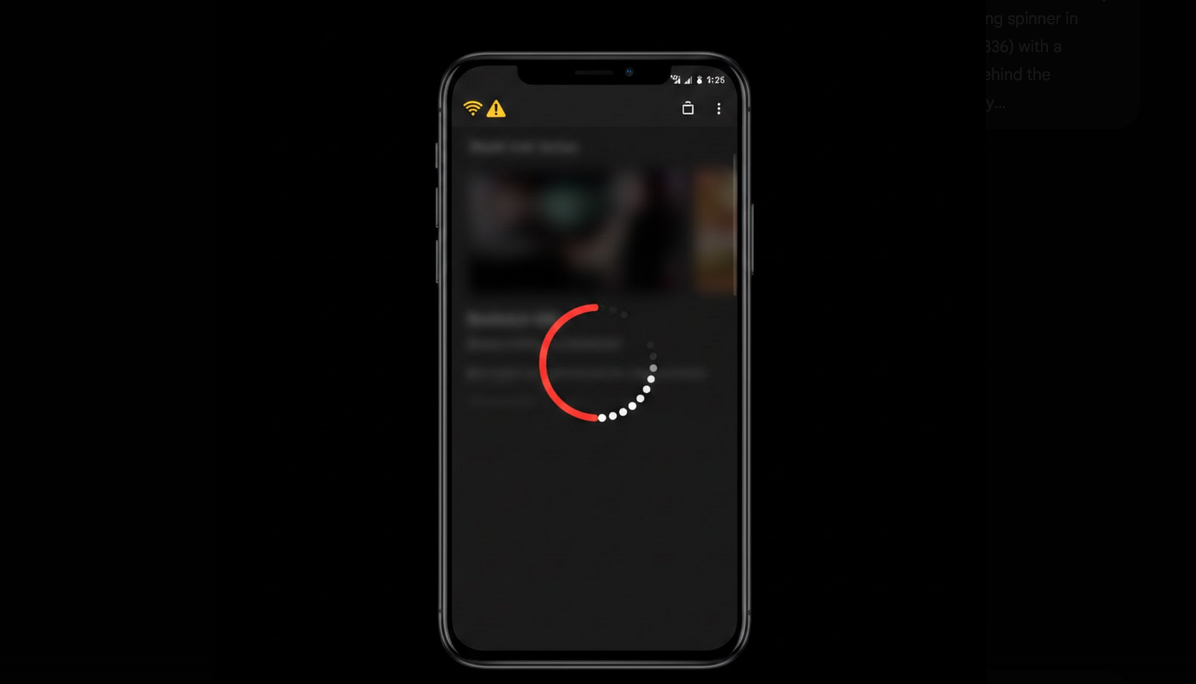
Buffering is one of the most frustrating experiences on YouTube. The spinning loading icon interrupts your video, breaks your focus, and wastes your time. Whether you are on Wi-Fi or mobile data, buffering can happen for a variety of reasons. Understanding the common causes and knowing how to fix them helps you enjoy smooth, uninterrupted playback on your Android device.
Common Causes of YouTube Buffering
Buffering occurs when your device cannot download video data fast enough to keep up with playback. Several factors contribute to this problem.
- Slow Internet Speed: Your connection may not be fast enough to stream at the selected video quality.
- Network Congestion: Too many devices sharing the same network reduce available bandwidth for each device.
- High Video Quality: Streaming at 1080p or 4K requires significantly more bandwidth than lower resolutions.
- App Cache Overload: A bloated app cache can slow down YouTube’s performance and cause loading delays.
- Outdated App Version: Older versions of YouTube may have bugs that affect streaming performance.
- Background Apps: Other apps consuming bandwidth or system resources in the background can compete with YouTube.
Quick Fixes for Buffering
Most buffering issues can be resolved with simple troubleshooting steps that take just a few minutes.
- Lower Video Quality: Switch to 480p or 360p to reduce bandwidth requirements immediately.
- Restart Your Router: Power cycle your router to refresh the connection and clear any temporary issues.
- Close Background Apps: Free up bandwidth and system resources by closing apps you are not actively using.
- Clear YouTube Cache: Go to Settings, Apps, YouTube, and tap Clear Cache to remove stored temporary data.
- Update the App: Check the Play Store for YouTube updates that may include performance fixes.
- Switch Networks: Toggle between Wi-Fi and mobile data to test which connection performs better.
- Restart Your Phone: A simple reboot clears memory and resets network connections.
Fixing Buffering with YouTube Vanced
YouTube Vanced helps reduce buffering in a way the official app cannot. By blocking all advertisements, Vanced eliminates the bandwidth and loading time that ads consume. Every ad that would have played requires data to load and render, and removing them frees up resources for actual video content. This results in faster loading and smoother playback overall.
Vanced also lets you override the default video quality and lock a specific resolution that matches your connection speed. This prevents YouTube from attempting a higher quality than your network can handle. With Vanced MicroG for account sync, your quality preferences persist across sessions.
Advanced Network Fixes
- Change DNS Settings: Switching to a faster DNS provider like Google DNS or Cloudflare DNS can improve connection speed and reliability.
- Disable VPN: VPN connections add routing overhead that can increase buffering. Disable temporarily to test.
- Use 5GHz Wi-Fi: If your router supports dual-band, connect to the 5GHz band for faster and less congested speeds.
- Check ISP Throttling: Some internet providers throttle YouTube traffic. A VPN can sometimes bypass this, though it adds its own overhead.
- Move Closer to Router: Physical distance and walls between your device and router weaken the signal and reduce speed.
Preventing Future Buffering
- Set Appropriate Defaults: Match your default video quality to your typical connection speed.
- Download for Offline: Pre-download content on Wi-Fi with YouTube Premium or third-party tools to avoid streaming issues entirely.
- Monitor Data Usage: Track which apps consume the most bandwidth and manage them accordingly.
- Keep Apps Updated: Regular updates fix bugs and optimize streaming performance.
Who Experiences Buffering Most
- Rural Users: People in areas with slower internet infrastructure and limited bandwidth options.
- Mobile Data Users: Viewers streaming on cellular connections with variable speeds and congestion.
- Shared Network Users: Households with many devices competing for the same bandwidth.
- HD Streamers: Users who stream at 1080p or higher on connections that cannot consistently support it.
Final Thoughts
YouTube buffering is annoying but almost always fixable. Simple steps like lowering quality, clearing cache, and restarting your network solve most issues quickly. Using YouTube Vanced adds an extra advantage by eliminating ad-related loading and giving you precise quality control. A smooth, buffer-free experience is achievable with the right settings and tools.
